
In our last 10 iOS security audits, the same three vulnerabilities appeared in every single codebase. Those were not sophisticated zero-days, but regular issues. Tokens stored in the wrong place. Endpoints without rate limiting. Third-party SDKs with permissions nobody had read. The kind of issues that take an afternoon to fix , but months to recover from when they surface in production.
That’s what happens when iOS app security best practices aren’t embedded in the build process from day one, and get scheduled for “right before launch”. A study from the Department of Homeland Security found that retrofitting security late in development costs 2–5 times more than building it in from the start. Security debt doesn’t disappear. It waits. And security isn’t just an engineering concern – when it goes wrong, product leaders, legal teams, and founders answer for it too. That’s why we created this app security checklist that covers the 10 areas we audit in every iOS project before it ships. Some items are 30-minute fixes. Others require architectural decisions that only matter if they happen early. All of them have appeared in real codebases we’ve reviewed, and all of them can be prevented.
- Remove unused NSUsageDescription permission keys from your Info.plist to avoid unnecessary permission exposure and App Store review issues.
- Confirm that App Transport Security (ATS) is enforced and that the app does not rely on insecure HTTP connections.
- Run MobSF static analysis against your release IPA to quickly identify hardcoded secrets, insecure configurations, and common mobile vulnerabilities.
Why iOS App Security Can’t Be an Afterthought
iOS has a reputation for being the most secure mobile platform – and that reputation is deserved. Apple’s application sandboxing model, ATS enforcement, and App Store review process raise the baseline. But “higher baseline” doesn’t mean safe. It means attackers have to work harder to find ways in. The Zimmperium 2025 GlobalMobile Threat Report confirms this: most mobile apps still fail industry best practices, especially around data handling and secure communication.
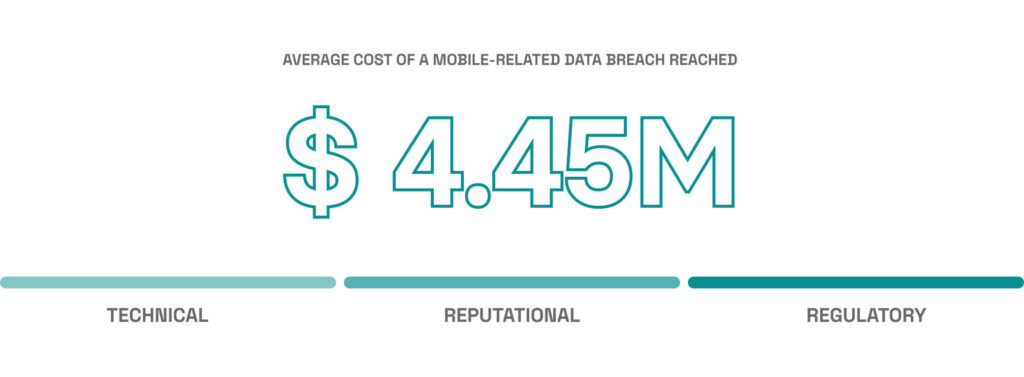
Network security is where that gap shows up most – Apple secures the channel, but not what your app does with it. According to the IBM Cost of a Data Breach Report 2025, the average cost of a mobile-related data breach reached $4.44 million. For early-stage companies without incident response, a breach can threaten the business directly- particularly if it triggers regulatory action or major customer churn. And according to Verizon’s DBIR, a substantial share of breaches exploit known unpatched vulnerabilities – not zero-days.
What Can Happen If You Ship Without iOS Security Testing
These aren’t hypothetical attack scenarios. Every item in this table represents a class of issue we’ve caught, fixed, or been called in to fix after it shipped to production.
| Vulnerability | Real-World Consequence |
|---|---|
No Keychain usage | Credentials stored in plain text. Extractable from any device backup or file system. |
No certificate pinning | Traffic interceptable via man-in-the-middle attacks, even over HTTPS. |
Unvalidated inputs | Injection attacks, unexpected app crashes, and data corruption in production. |
Weak session management | Stolen tokens give attackers permanent access until you detect and revoke them. |
No jailbreak detection | App binary can be reversed, Keychain extracted, and backend bypassed. |
Unaudited SDKs | Third-party code exfiltrates user data without you knowing. Legal liability follows. |
Secrets in the binary | API keys extracted in minutes using tools like Hopper or Frida. Backend exposed. |
The good news: most of these outcomes are preventable. The checklist below covers every area where we’ve seen production apps fail, with specific guidance on what to do instead.
The iOS Mobile App Security Checklist
Every item in this table represents a class of issues we’ve caught in production iOS apps. Work through them before you submit.

1. Store Sensitive Data in the Keychain – Not UserDefaults
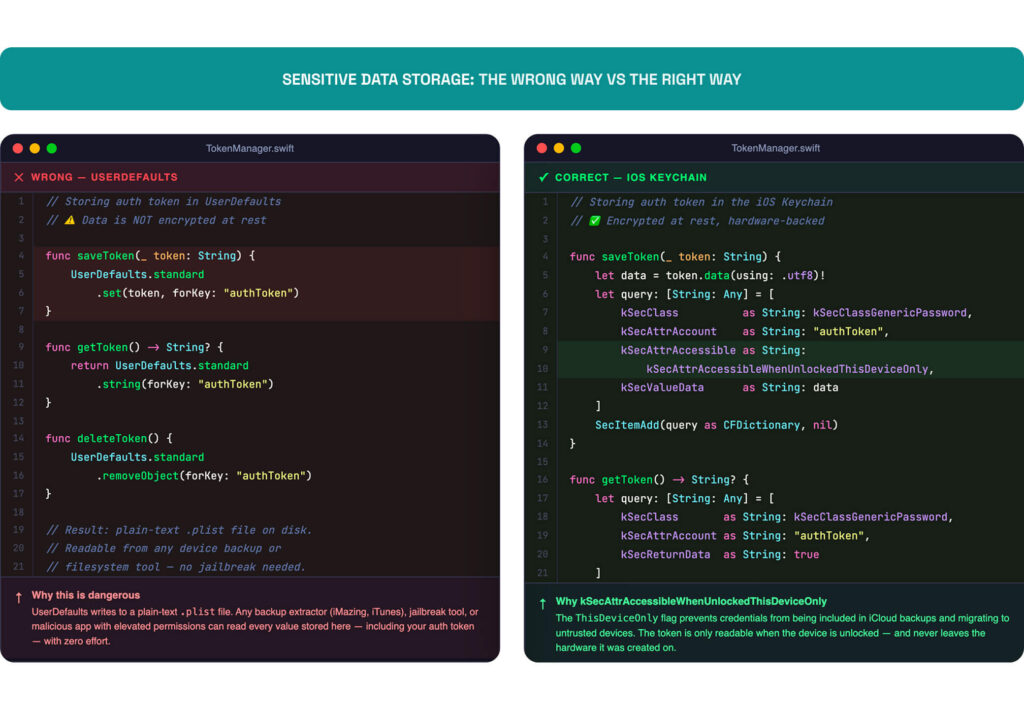
Secure data storage is the most misconfigured area we see in iOS codebases. And the fix is easy: if you’re storing tokens, passwords, or session credentials in UserDefaults, stop. That data sits in a plain-text .plist file. Anyone with filesystem access – a backup extractor, a jailbreak tool, or a malicious app with elevated permissions – can read it.
Use the iOS Keychain Services for anything sensitive. Data encryption in iOS operates at two levels: the platform level, which Apple handles through the Secure Enclave, and the application level, which is your responsibility. The Keychain sits at that second level – it encrypts data at rest using hardware-backed encryption and ties access to the device. For most apps, kSecAttrAccessibleWhenUnlockedThisDeviceOnly is the right access level – it prevents iCloud backups from carrying credentials to untrusted devices. Use Keychain access groups if you need to share credentials across app extensions or a suite, but know that this is an intentional tradeoff: security over multi-device convenience.
Feel unsure about these controls?
If your team needs a Swift developer who can implement these correctly from day one, see how our team can help.
2. Enforce HTTPS and Use SSL/TLS Certificate Pinning
App Transport Security (ATS) documentation is iOS’s built-in enforcement layer to encrypt connections, and too many teams disable it to ship faster, then forget to re-enable it. It’s on by default. Don’t disable it. And don’t add exceptions like NSAllowsArbitraryLoads without a concrete reason and a concrete plan to remove them before launch.

Go further with SSL/TLS certificate pinning. This ensures your app only trusts specific server certificates or public keys – not just any cert signed by a valid CA. A compromised CA or a man-in-the-middle (MitM) proxy can intercept HTTPS traffic from an unpinned app. TrustKit handles most of the implementation for Swift and Objective-C projects without much overhead.
Certificate pinning prevents TLS interception by QA proxy tools (Charles/Proxyman/mitmproxy). The standard approach is environment-based enforcement: strict pinning in Release (production), a separate pin set in Staging, and in Debug allow inspection via a hardcoded debug certificate or a trusted internal CA rather than fully disabling pinning. This preserves some security posture even if debug builds escape into the wild. Never ship a production build where pinning can be bypassed.
3. Validate and Sanitize Every Input
Don’t trust data from users – or from any external source. SQL injection, buffer overflows, and script injection attacks all start with unvalidated input getting passed somewhere it shouldn’t go.
Validate input type, length, and format before processing it. This applies to form fields, deep link parameters, push notification payloads, and API responses. Never pass raw user input directly into queries or system calls.
Client-side validation improves UX, but it’s not a security control. Server-side validation is what actually protects you, and it’s non-negotiable regardless of what the client does. If your app renders web content, extend the same discipline to your WKWebView configuration: disable JavaScript where it isn’t needed and enforce a Content Security Policy. Input validation catches what comes in through your forms; WebView security catches what comes in through your rendered content – and attackers will probe both.
4. Implement Secure Authentication and Session Management
Weak credential management is where most iOS apps break first. It ranks near the top of OWASP guidelines (Mobile Application Security Verification Standard) and the OWASP’s Mobile Top 10. Our own audit data supports that ranking.
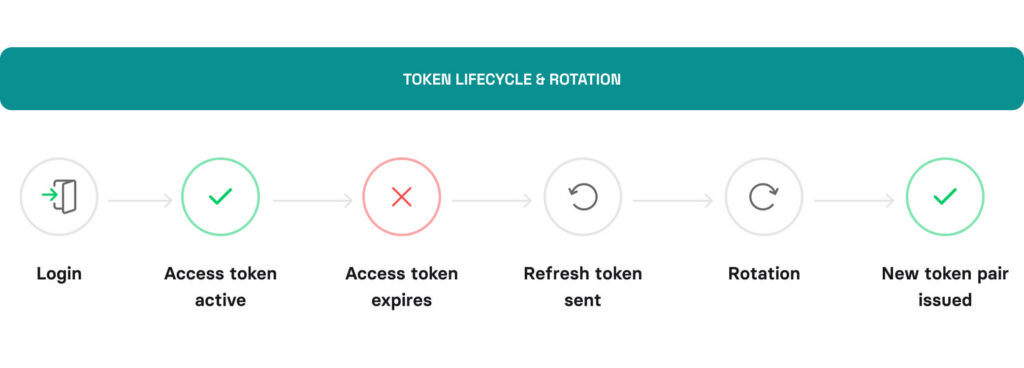
In practice, that means checking four specific behaviors before launch:
- Token expiration: Access tokens should expire. Refresh tokens should rotate. A token that lives forever is a permanent key waiting to be stolen.
- Biometric authentication: Use LocalAuthentication framework by calling .deviceOwnerAuthenticationWithBiometrics for sensitive actions. Require re-authentication after a session timeout, not just app relaunch. Configure biometric authentication fallbacks carefully – Face ID failures should fall back to PIN, never to a less-secure path.
- Logout is real: When a user logs out, invalidate the token server-side. Deleting it from the Keychain isn’t enough if the backend still accepts it.
- Use proven identity providers: Don’t build your own auth flow if you can use OAuth 2.0 / OpenID Connect via a proven identity provider. The risk of getting it wrong isn’t worth the engineering time.
5. Implement Jailbreak Detection and Runtime Tamper Protection
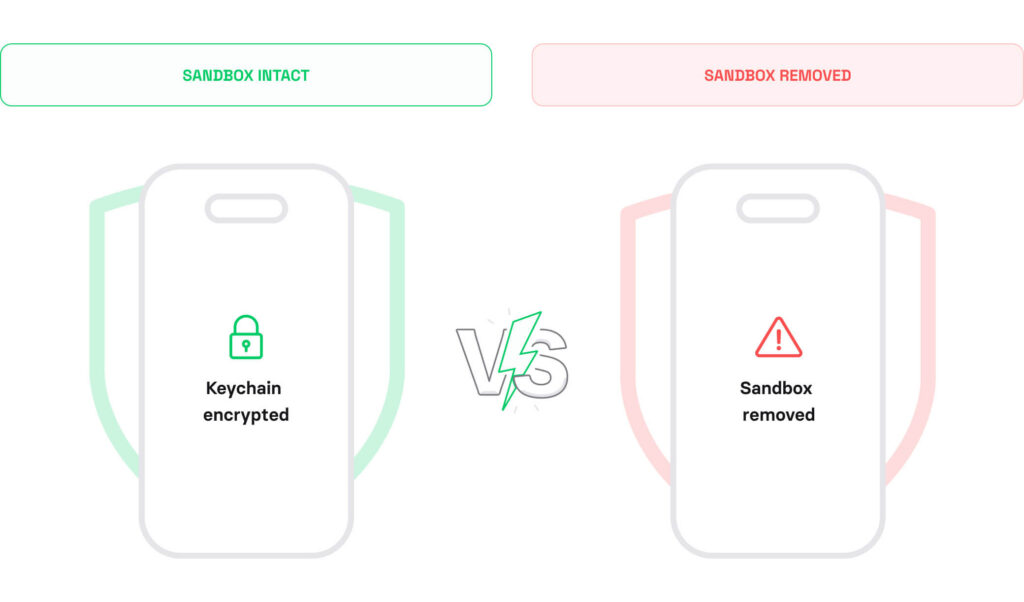
A jailbroken device removes the iOS sandbox your app relies on. Attackers use jailbroken devices for IPA file reverse engineering, Keychain extraction, and hooking into runtime calls.
You can’t block jailbroken devices entirely, but you can detect them and limit what they can do. Common signals include the presence of Cydia or other sideloaded files, fork() availability, and writable paths outside the sandbox.
IOSSecuritySuite handles most detection logic. Combine it with Runtime Application Self-Protection (RASP) checks to flag debugger attachment and code injection before they cause damage. In high-risk categories apps, add code obfuscation to your release build – it raises the cost of static analysis on your binary without affecting runtime performance.
If your API handles high-value operations (payments, account changes, sensitive data), consider implementing App Attest with server-side validation.
App Attest cryptographically verifies that requests originate from a genuine, untampered instance of your app running on a real Apple device, helping reduce fraud, bot traffic, and replay attacks.
6. Audit Your Third-Party SDKs
Every third party library or SDK you add is an attack surface you didn’t build and not fully control. A dependency with broad permissions, unencrypted telemetry, or an unpatched CVE can expose users without a single line of your code being at fault.
Before launch, audit each SDK in your project, against these four criteria:
- Does this SDK need the permissions it requests?
- Is it maintained and up to date?
- Does it collect or transmit user data – and is that disclosed in your privacy policy?
- Does it have a clear, compatible license?
Remove anything you don’t actively use. The smaller your dependency tree, the smaller your attack surface. For ongoing third-party dependency vulnerability audits, automate what you cannot review manually.
7. Lock Down Your API Layer
Your mobile client is public. Anyone can decompile the binary, extract API endpoints, and start sending requests. Design your backend API as if the client is untrusted – because it is.
- Never embed API secrets or private keys in the app binary. Route calls through a backend proxy. For sensitive operations, layer API payload encryption on top of TLS – intercepted traffic yields nothing even if certificate pinning fails.
- Enforce authorization on every endpoint server-side. Don’t rely on the app to hide features from unauthorized users.
- Rate-limit your endpoints. An app making 1,000 requests per minute from one device isn’t behaving normally.
- Log and monitor anomalous request patterns. Detection is your fallback when prevention fails.
API security testing should be part of your pre-launch process, along with binary scanning. Tools like OWASP ZAP or Burp Suite let you probe your endpoints for broken authentication, excessive data exposure, and missing rate limit enforcement.
8. Handle Sensitive Data in Memory Carefully
Secure memory handling is a less obvious attack surface – but it matters, especially in any app that handles credentials, payment data, or personal information. Sensitive data in memory can be accessed on jailbroken devices or through debugging tools attached to a running process.
Clear sensitive values from memory as soon as you’re done with them. For encryption keys and credentials, use Data types with explicit zeroing rather than String, which is immutable and can’t be reliably cleared. And avoid logging sensitive data – even in debug builds. Log statements have a habit of making it into production builds.
Two related issues often overlooked:
- Pasteboard and clipboard data leakage: sensitive values copied to the system clipboard persist across sessions, so clear them on app backgrounding.
- Background screen masking: without it, the iOS app switcher captures a snapshot of your UI that can expose sensitive screens.
9. Configure Privacy Permissions Correctly
iOS requires apps to declare permissions for camera, microphone, location, contacts, and other sensitive resources. Requesting permissions you don’t use is a red flag to users, and to Apple’s review team.
Before submission, audit your Info.plist for misconfigurations – permissive ATS exceptions, unused permission keys, and exposed URL schemes all get flagged during App Store review and security audits. Every NSUsageDescription key should reflect a real, active user-facing need. If a feature that required a permission was cut from scope, remove the key.
Request permissions at the point of use, not at app launch. A user who understands why you need access is far more likely to grant it.
10. Run a Pre-Launch iOS Vulnerability Scan (SAST + DAST)
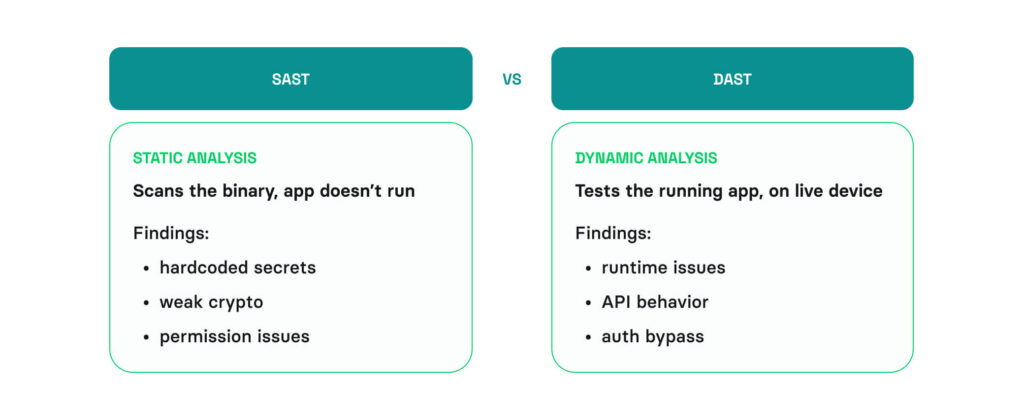
Manual review catches a lot. Automated security testing can catch what you miss. Before submitting to the App Store, run your binary through a static analysis tool.
MobSF (Mobile Security Framework) is a reliable open-source option for Static Application Security Testing (SAST). It scans for hardcoded secrets, insecure API usage, weak cryptographic algorithms, misuse of iOS security frameworks, and permission misconfigurations. Then it generates a full report you can share with your security or QA team. For Dynamic Application Security Testing (DAST) – testing the running app – pair MobSF with Frida or a dedicated iOS vulnerability scanning platform to catch runtime issues that static analysis misses.
How Volpis Approaches iOS App Security
The ten areas in the checklist above cover the baseline for Swift secure coding practices. These areas can damage user trust, trigger App Store rejections, and for apps operating under compliance requirements like GDPR, HIPAA, CCPA, or PCI-DSS can cause serious regulatory exposure.
Over 10 years and 50+ iOS apps – across fleet tracking, AR navigation, enterprise tooling, and consumer products – we’ve audited codebases that looked clean until they weren’t, and been called in to remediate issues that a pre-launch review would have caught in an afternoon.
On FleetSu, a production fleet management app used by drivers daily, we built biometric driver authentication, NFC-based vehicle check-in, and continuous background location tracking. Each of those features required the exact controls this article covers: Keychain storage, secure session management, and precise handling of sensitive data in memory. The iOS security architecture wasn’t designed at the end, it was a design constraint from the first sprint. That’s the kind of engagement that makes a checklist like this feel concrete rather than theoretical, and it’s reflected in the feedback we received from the team on Clutch.

If you’re in the earlier stages and need a team to build the app itself, our iOS App Development Service is the right starting point. And if you’re heading toward launch and want a second set of eyes on the architecture, the security model, or this checklist specifically, reach out to us via info@volpis.com or fill out the contact form below.
Questions & Answers
FAQ
How do iOS apps compare to Android in terms of security?
iOS has a tighter default security model – stricter app sandboxing and mandatory App Store review. Android’s open ecosystem gives developers more flexibility but a larger attack surface. In practice, the platform matters less than the code running on it – but if you’re still deciding between the two, our article on Which Platform to Choose walks through the strategic decision in detail.
Does Apple’s App Store review check for security vulnerabilities?
Apple reviews apps for policy compliance, not full security audits. The responsibility sits entirely with your team.
What encryption standards should iOS apps use?
For data at rest, use AES-256 through Apple’s CryptoKit or the Data Protection API – both leverage the Secure Enclave on supported devices. For data in transit, TLS 1.2 minimum, TLS 1.3 where possible. Avoid rolling your own crypto. iOS gives you hardware-backed encryption by default if you use the right APIs – the mistake most teams make is storing data somewhere that bypasses it entirely, like UserDefaults.
What’s the safest way to store an API key in an iOS app?
API key storage is a key management problem – and the answer sits on your server, not in your app. There’s no fully secure way to embed a secret in a client binary. Keep the secret on a backend server, have your app call a proxy endpoint that handles authenticated requests, and rotate keys on a defined schedule so that a leaked key has a limited window of usefulness.
Is certificate pinning required for all iOS apps?
No. But if your app handles financial data, health records, or authentication credentials, pinning is worth implementing. TLS certificates establish trust between your app and your server – certificate pinning takes that a step further by ensuring your app only accepts your specific certificate rather than any certificate signed by a trusted CA.
How do I prevent screenshots and screen recordings in an iOS app?
You can’t fully block screenshots on iOS – Apple doesn’t expose that control to developers. What you can do: use UITextField with isSecureTextEntry in sensitive fields, which blacks out content in screen recordings. For the app switcher snapshot, apply a blur or cover view in applicationWillResignActive. For screen recording detection, UIScreen.isCaptured lets you hide sensitive content when a recording is active. None of these are foolproof – defense in depth applies here too.
Should we test security on a real device or a simulator?
Both – but prioritize real devices. Simulators don’t support Secure Enclave, biometric authentication, or hardware-level security features, which means entire categories of your security implementation simply don’t run. Keychain behavior differs too – the simulator uses a shared keychain that doesn’t reflect real device access controls. In practice: write your tests on a simulator, validate your security controls on hardware. Always test on actual iOS hardware before launch.
How often should we run security audits after launch?
At minimum, with every major iOS update and each time you add a new third-party SDK. For standard consumer apps, after every major release and whenever dependencies change is the floor. For regulated industries – health, finance, logistics – quarterly audits are a reasonable baseline, and at least one full penetration testing engagement per year is worth building into the security budget.
Can an iOS app be hacked after release?
Yes – and it happens more often post-launch than before it. New CVEs surface in your dependencies. iOS updates change the security model. Attackers study your binary once it’s public. Shipping a secure app means monitoring it after release: subscribe to CVE feeds for every library you use, run MobSF on every update build, and treat each new iOS version as a reason to re-test. Launch is not the finish line.
Does this checklist apply to cross-platform apps built with Flutter or React Native?
Partially. The principles apply everywhere, but the implementation doesn’t. Flutter and React Native both have Keychain and biometric plugins, but they’re not drop-in replacements for native APIs. Flutter’s flutter_secure_storage has had known issues with data persistence after uninstall on Android that can affect iOS parity testing. React Native’s older bridge architecture can expose sensitive data in JS bundles that are easier to extract than compiled Swift. Treat this checklist as a starting point, not a direct port. If you’re building cross-platform, our Mobile App Development services cover security architecture across Flutter, too.